Retouching Tips: Frequency Separation
In this video, I explain how to do a frequency separation on an image. I show how it can be used to smooth skin or remove blemishes, but this technique can be used for many things, such as contrast, sharpening, adding texture, etc.
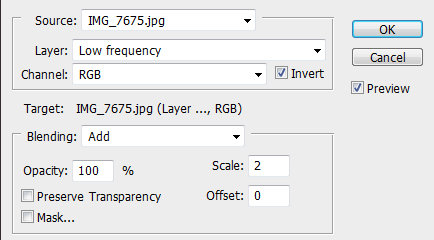
The image I’m working on in the video is 8-bit. If you want to use this technique on a 16-bit image the settings will be different on the Apply Image box but the steps will remain the same (see below).
8-bit image settings

16-bit image settings
Here’s another image with the same techniques applied:


A-M-P
Angela Perez is a fashion photographer and digital retoucher based in Boston, MA. Angela is also a professional instructor of Studio Lighting and Retouching, with four years of experience using Adobe Photoshop and Lightroom. Check out www.angelamichelleperez.com to see additional work.
Follow Me:


May 14, 2012 at 2:06 am, Jeffery Brown said:
…good stuff, thanks for sharing Angela! =]
April 23, 2012 at 10:07 am, Benno Sellin said:
helped me a lot to move a couple steps forward in digital retouching.
and saves me so much time. thank you really much!
March 29, 2012 at 3:23 am, Darque Room Images said:
I had been wondering about this…thanks for posting this.
February 20, 2012 at 6:57 pm, Hoover185 said:
Thanks Angela, I followed along and was very impressed with how this worked. I was always having problems with the healing brush picking up surrounding colors, this has fixed that. Kudos sister!
February 13, 2012 at 5:41 pm, Jesaitche said:
this is so informative thanks a lot sure appreciate the tutorial you’ve helped me more than you could ever imagine thanks!
February 09, 2012 at 8:30 pm, ProDigi Artz said:
Hi Angela!
Great tutorial! I have been using a similar technique with the high pass filter and intrigued by the “apply image” method for frequency separation. In your layer duplication you named one “low frequency” and applied blurs to it. You then took your “high frequency” layer and went to image>apply image and chose “low frequency” in the dialog box in the “layer” drop down menu. Why did you choose “low” there when the layer is labeled “high?” What is the difference in the choices of “merged/low frequency/high frequency in that “layer” window and is it different from what your intent is in labeling your layers pallet?
Just want to be sure I am not missing something. Thank you for the time you put into the video and your knowledge.
February 09, 2012 at 7:56 pm, Paul O'Rourke said:
Brilliant tutorial – can’t wait to try it. I had been creating a gaussian blur layer and painting through to smooth the tones but this is much better because the texture is retained.
February 09, 2012 at 10:54 pm, Jon Miller said:
I’ve been doing the same and then coming back over the image with a noise filter, to add texture, but this is looks much better.
February 09, 2012 at 6:51 pm, Angela Perez said:
The bigger your image the higher the radius would need to be. Just use enough for when you see the color to blend a bit.
February 09, 2012 at 10:53 pm, Jon Miller said:
Angela what you are saying is if one uses a 21mp image then they are looking at using at least 30px or more.
February 09, 2012 at 11:22 pm, Jon Miller said:
Maybe you can answer this for me. When I keep the high frequency layer “on” I cannot see what the blur effect looks like (even when I ramp it up to 100px) on the low frequency layer, but if I turn “off” the high frequency layer I can see the blurring, any idea why?
So for me it’s set up low and high frequency, turn off the high when working on the low frequency. Have you seen this before, btw I’m using PS CS5 Extended on a IBM platform PC.
Correct me if I’m wrong, but it seems like on the low frequency layer you are putting on glaussian blur, then make a copy of the layer and add surface blur to the same layer, thereby increasing the blurring effect on the same layer, or does each layer (copied or not) act independently.
Thanks Angela for your assistance.
February 10, 2012 at 1:42 am, Angela Perez said:
When you originally do your Gaussian blur you will need to toggle off the high to see how much it’s blurring, Then toggle the high back on. After you do the apply image step to the high you will now be able to see what’s happening on both the low and the high. Now your image is split. You then do your skin smoothing on an copied layer of the low not on the actual low on that copied layer you can use your preferred blurring method I use surface blur. Now when you do that blurring you will be able to see the effect underneath the high with it toggled on. Remember in order for it to smooth on the copied layer you will have to play with your radius as well according to your image size. Also you need to make sure when healing on the high that you selected current layer and not all layers. All the layers act independently
February 12, 2012 at 2:34 pm, Angela Perez said:
30px is way too much that would transfer a lot of the color info into the high, just use enough that you will see the color blend a bit.
February 09, 2012 at 5:27 pm, Jon Miller said:
like the video, however, when I tried this I could not see the smoothing take effect nor when i went to retouch the high frequency i ended up with big red blotches. trying to figure out what I did wrong. The step as I understand them is:
ctrl -j x 2
label layer 1 as low and layer 1 copy as high
select low layer add glaussian blur at about 10 pixels ctrl-j to make copy, add mask (alt-select mask), select brush (paint white)
this is where I see nothing happening, any reason why?
February 09, 2012 at 1:43 pm, Téoman David said:
Very cool. I tried this out using Nik’s Dynamic Skin Softener instead of surface blur and got a good result while preserving texture. Thank you!
February 09, 2012 at 2:23 am, M2foto said:
Great technique. I’ve been brushing skin smooth…then adding noise for skin texture. However…your method maintains the original texture…very cool…and thanks.
February 09, 2012 at 12:51 am, R. Dante' (PbR) said:
very informative and I will definitely give this a try….
February 08, 2012 at 11:29 pm, Robertp852 said:
Thanks Angela for introducing me to this technique in a very easy way to understand!
February 08, 2012 at 8:34 pm, Wongfeihong616 said:
it`s amazing to me that someone takes the time to share something with others ,and you still come up against a couple of stupid dumb^&%&^ that all they can offer is negative comments and personal ridicule, if you don`t like something,why not just shut your mouth and go elsewhere!!
January 31, 2012 at 3:52 am, knphotographyla said:
Thanks for sharing.
I recently started using this technique to help bring back more detail after running my image thru portraiture, but your video explains how to do the same without the plug-in. You clearly explaining what each layers did. Great job!
January 30, 2012 at 2:31 am, Erasmroterdam said:
Simple, elegant and Effective !!!!.
Thanks
January 29, 2012 at 8:41 pm, Charlie Ball said:
Where is the “apply image” button on elements 8? This does not work for me because as soon as I get to this step there is no apply image button.
January 29, 2012 at 5:38 pm, Carlos A. Velasco said:
Nice tutorial but I find that actual step of replicating the layer so many times to be wasteful. For low level re-touching like this just adjust the image on a duplicate. You get 99% of the same effect in 50% of the time. Now for high level image editing layer separation is a must.
p.s.
I cracked up every time you said “Gaugassian blur”. It’s Gaussian blur. lol
February 09, 2012 at 3:00 am, Orandeeo said:
I can’t believe someone would even bring that up…not to mention that all you did was spell “Gaussian”..she can’t hear what you type. Now that cracks me up.
January 29, 2012 at 11:02 am, Varun said:
Just saw your video and really its amazing i really didnt knew the technique thanks
January 29, 2012 at 9:28 am, Jinx said:
For some reason, this isn’t working for me. My layers are in the same order as yours, on the same modes as yours, but whatever I do below the texture layer doesn’t show at all. What am I missing?
January 29, 2012 at 6:14 am, Anonymous said:
It’s not as effective as healing then passing through portraiture but that’s an added expense.. Regardless, i could listen to that accent all day long 🙂
January 29, 2012 at 1:02 am, Kareem King said:
This right here is a game changer.
January 28, 2012 at 10:49 pm, Peter said:
great Tutorial – Loved it
January 28, 2012 at 8:27 pm, Anonymous said:
Angela, Thanks so much for taking the time to put this video together! Excellent to say the least!
January 28, 2012 at 5:57 pm, Alberto Santos Bellido said:
thanks
January 28, 2012 at 5:56 pm, Theph2 said:
Do you think you could possibly type out the steps so I can try this on my own? I have a hard time following verbal directions. Especially thins kind of learning. Thanks! Great job with the photo! You have a good eye!
January 28, 2012 at 12:37 pm, Sigh said:
thank you
January 27, 2012 at 7:10 pm, Dthorpe2008 said:
Angela, you really should do more video tutorials because this one was excellent. I tried this out and it worked great, and I noticed that it makes thigh cellulite disappear really easily. Just what I happened to need today. I’ll be using this one a lot. Thanks so much.
January 27, 2012 at 7:03 am, Paul Cobo, Miami Beach said:
Thanks for sharing the info.
Direct and clear.
Can you post a part II to this video tutorial for beauty shots that show the extra techniques you used on the beauty shots on your site.
January 27, 2012 at 1:16 am, Scurlock80 said:
Nope
January 29, 2012 at 4:55 pm, Gumbosnow said:
Incredible input Scurlock80. You should be proud.
January 26, 2012 at 10:48 pm, Tim said:
Good stuff…. mahalo
January 26, 2012 at 9:49 pm, Felix said:
Thank You….Great information
January 26, 2012 at 9:08 pm, Eric, Paris France said:
Tested & approved ! Great !
January 26, 2012 at 8:18 pm, Ken W said:
Very, very helpful. Thank you for the explanation.
January 26, 2012 at 7:11 pm, Anon. said:
Thank you Angela for your video. Only you were able to explain it in a way where I got it! <3 You rock!
January 26, 2012 at 7:01 pm, Terra said:
thank you!!! the photo and technique is awesome!!!!